What does queued mean in Gmail? Why emails get stuck and how to fix it
Seeing queued in Gmail usually means your message is waiting in the Outbox because Gmail cannot send it yet. Here are the common causes, safe fixes, and when to check SPF, DKIM, or DMARC.
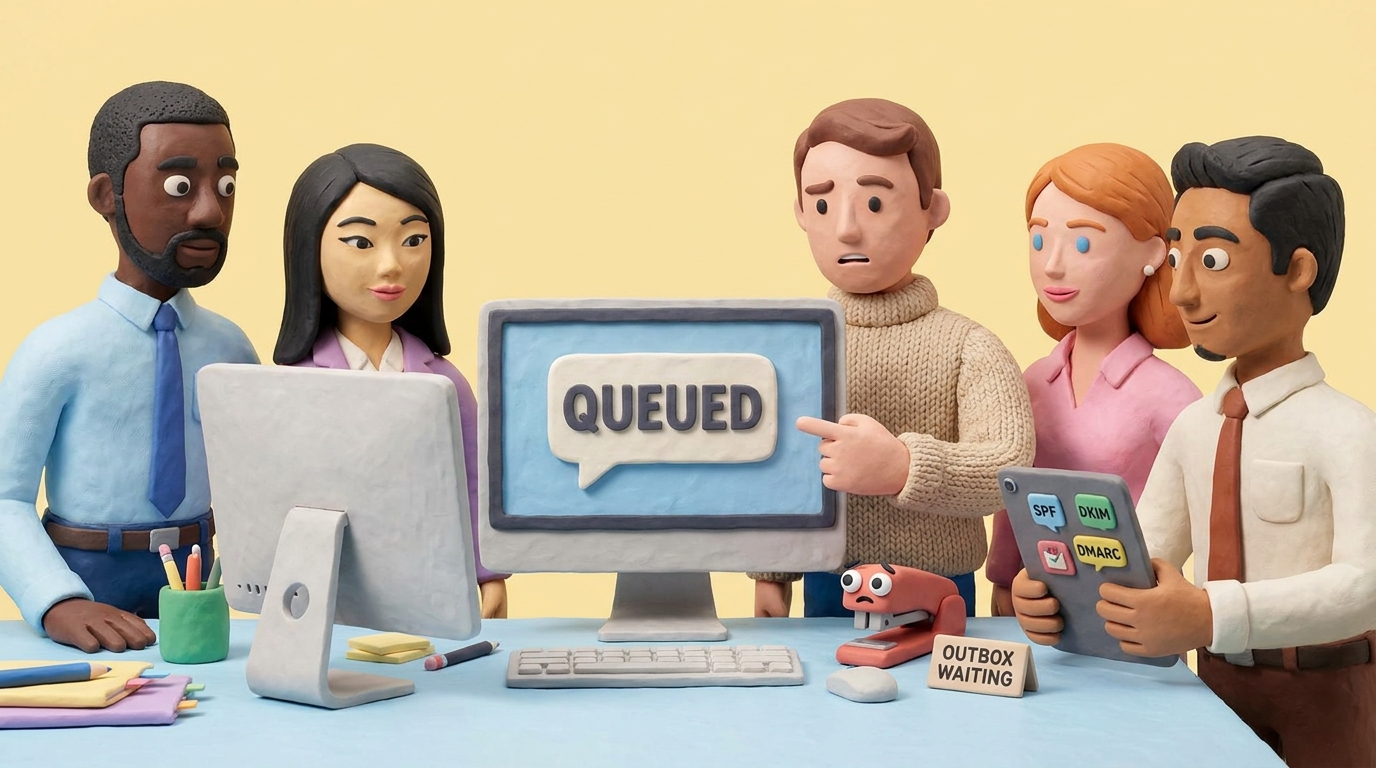
If Gmail says an email is queued, it means the message has not been sent yet. It is waiting in the Outbox until Gmail can finish sending it.
Most queued Gmail messages are not lost. They are usually waiting because of a weak internet connection, offline mode, a Gmail app sync problem, an attachment upload, full storage, or a temporary Gmail service issue.
For personal Gmail users, start with the quick fixes below. For businesses sending from a custom domain, keep two stages separate. SPF, DKIM, and DMARC do not normally cause a message to sit in Gmail’s local Outbox. They matter after the message leaves Gmail and reaches a receiving server.
We verified this troubleshooting flow against Google’s Gmail help in August 2026. In our authentication work, we often see teams investigate DMARC while the message is still local to the app. Check the queue first. Check authentication only after Gmail sends the message or returns a delivery error.
Quick answer: what queued means in Gmail
Queued means Gmail is holding the message and plans to send it later.
The message may be in your Outbox because:
- Your phone or browser is offline.
- The connection is too slow or unstable to finish sending.
- Gmail offline mode saved the message locally.
- The Gmail mobile app is not syncing.
- An attachment is still uploading or is blocked.
- Your Google Account or device storage is full.
- You hit a Gmail sending limit.
- Gmail is having a temporary service disruption.
If the message is urgent, do not keep sending duplicates. First check whether it is in Sent, Drafts, or Outbox. Google recommends checking Sent Mail and Drafts when a message is delayed or did not arrive, then waiting a few hours to see whether a delivery error appears.
How to fix a queued email in Gmail
Work through these in order. The early steps fix most cases without risking drafts or settings.
1. Check your internet connection
Google’s Gmail help says that if an email is taking a long time to send, you should make sure you are connected to Wi-Fi or mobile data. A slow connection can make sending take longer.
Open a browser and load a normal website. If it fails, fix the connection first. If you are on weak mobile data, switch to Wi-Fi. If you are on a captive Wi-Fi network, open a browser and complete the login page. If a VPN or firewall is interfering with Gmail, test briefly without it.
Then reopen Gmail and check the Outbox.
2. Check the Outbox, Sent, and Drafts
Queued messages usually appear in the Outbox. If the message has already moved to Sent, it is no longer queued in Gmail. If it is in Drafts, it was not sent.
If the recipient says the message did not arrive, ask them to check spam or junk. If Gmail later sends you a delivery error, read the error before resending. A bounce message usually explains whether the address is invalid, the recipient mailbox is full, the recipient server rejected the message, or the content looked suspicious.
3. Let attachments finish uploading
Attachments are a common reason a message feels stuck. Gmail supports attachments up to 25 MB. For larger files, Gmail uses Google Drive links instead of attaching the file directly.
On Android and iPhone, Gmail can let you send while an attachment is still uploading, then finish the upload in the background before sending. If the connection is weak, this can look like a queued email.
If the message has a large file:
- Stay on stable Wi-Fi until the upload finishes.
- Remove and reattach the file if the upload appears frozen.
- Use Google Drive for large files.
- Remove blocked file types such as executable files.
4. Fix Gmail app sync on Android
Google’s Android Gmail sync help lists “You can’t send messages” as a sync issue. The official troubleshooting flow includes manually syncing the app, updating Gmail, restarting the device, checking the internet connection, checking Gmail sync settings, checking device sync settings, checking Google Account storage, clearing device storage, and clearing Gmail app data only as a last step.
Start with the low-risk actions:
- Open Gmail and pull down from the inbox to manually sync.
- Update the Gmail app.
- Restart the phone.
- In Gmail settings, make sure Sync Gmail is enabled for the account.
- Make sure Android account sync is enabled.
Be careful with the final “clear Gmail info” step. Google warns that it can erase message drafts, signatures, ringtones, and other settings. Only do that after safer steps fail.
5. Check Gmail offline mode on desktop
Gmail Offline lets Chrome users read, search, and reply without an internet connection. Google’s Gmail Offline help says that if you send a message offline, Gmail saves it in a new Outbox folder and sends it automatically when you reconnect.
That behavior is useful, but it explains many queued messages on desktop.
If you use Gmail in Chrome:
- Go to Gmail’s offline settings.
- Check whether offline mail is enabled.
- Reconnect to the internet and keep Chrome open long enough for Gmail to sync.
- If offline mode is causing confusion, turn it off after your messages are sent.
6. Check Google Account and device storage
Google storage is shared across Gmail, Google Drive, and Google Photos. Google’s storage help says that when your account reaches its storage limit, you cannot send or receive Gmail messages.
On Android, low device storage can also stop the Gmail app from syncing.
Check:
- Google Account storage.
- Phone storage.
- Large Gmail attachments you no longer need.
- Spam and Trash, which can still take up storage.
After freeing space, reopen Gmail and let it sync.
7. Check Gmail sending limits
Gmail limits how many messages and recipients you can send to. Google’s Gmail limits page says personal Gmail users may see a sending-limit message if they send to more than 500 recipients in one email or send more than 500 emails in a day. Google says sending can usually resume within 1 to 24 hours.
If you hit a limit, waiting is usually the fix. Do not keep retrying the same large send. For newsletters or bulk mail, use a proper email sending platform and follow Google’s sender guidelines.
8. Check Gmail service status
If your connection, storage, attachments, and sync settings look fine, check the Google Workspace Status Dashboard for Gmail disruptions. Google says the dashboard shows current and recent outages or service disruptions for Workspace services, including Gmail.
If there is a Gmail incident, wait until it is resolved before resending.
Is queued the same as bounced?
No. Queued and bounced are different states.
Queued means Gmail has not finished sending the message yet.
Bounced means the message was sent but could not be delivered, or was rejected by the recipient’s mail system. Google’s Gmail help says bounced or rejected emails often include an error message, and common reasons include an invalid address, a recipient server problem, a full recipient inbox, suspicious content, or rejection by the recipient’s provider.
This difference matters. A queued message usually calls for app, network, storage, or attachment troubleshooting. A bounced or rejected message calls for reading the delivery error and fixing the underlying delivery problem.
Could a queued Gmail email be an SPF, DKIM, or DMARC problem?
Usually, no.
SPF, DKIM, and DMARC are checked by receiving mail servers after a message leaves the sending system. If Gmail still shows the message as queued in your Outbox, the problem is usually before that point: connection, sync, storage, attachment, app state, offline mode, or a sending limit.
Authentication becomes relevant when:
- The email leaves Gmail but later bounces or is rejected.
- Recipients say your messages land in spam.
- You send from a custom domain, such as
[email protected]. - You send high volume to Gmail users.
- You use Google Workspace or a third-party email platform for business mail.
Google’s email sender guidelines require all senders to authenticate with SPF or DKIM. Bulk senders who send more than 5,000 messages per day to personal Gmail accounts must set up SPF, DKIM, and DMARC, and direct mail must align the From: domain with either SPF or DKIM.
If you send from a custom domain, check your domain with the DMARCTrust domain checker. For practical setup guides, start with SPF, DKIM, and DMARC alignment explained, GoDaddy SPF setup, or GoDaddy DMARC setup.
A safe troubleshooting order
If you want the shortest path, use this order:
- Check whether the message is in Outbox, Sent, or Drafts.
- Confirm internet access with a browser.
- Switch to stable Wi-Fi and reopen Gmail.
- Wait for attachments to upload or remove the attachment.
- Pull down to sync the Gmail app, update it, and restart the device.
- Check Google Account and device storage.
- Check Gmail offline settings if you use Chrome.
- Check for Gmail sending-limit messages.
- Check the Google Workspace Status Dashboard.
- If the message later bounces, read the bounce and investigate delivery, authentication, or recipient-side rejection.
FAQ
What does queued mean in Gmail?
Queued in Gmail means the email is waiting to be sent. It has not successfully left Gmail yet.
Will a queued Gmail email eventually send?
Usually, yes. Gmail can send queued messages automatically after the connection, sync, upload, storage, or service issue clears. If the message stays queued for a long time, work through the troubleshooting steps above.
Why is my email queued in Gmail?
The most common reasons are poor internet, Gmail offline mode, Gmail app sync problems, attachment upload delays, full storage, sending limits, or a temporary Gmail service issue.
What does queued mean on Gmail Android?
On Android, queued often means the Gmail app cannot sync or send right now. Check your connection, manually sync by pulling down in Gmail, update the app, restart the phone, confirm Sync Gmail is enabled, and check storage.
Is queued the same as sent?
No. Queued means Gmail is still waiting to send the message. Sent means Gmail has sent it.
Is queued the same as bounced?
No. A queued message has not finished sending. A bounced message was sent but rejected or returned by a mail server.
Should I resend a queued Gmail message?
Not immediately. First check whether the message is already in Sent. If it is still in Outbox, fix the likely cause and let Gmail send it. Resending too quickly can create duplicates.
Can SPF or DMARC cause Gmail to show queued?
Usually not for a message sitting in your Gmail Outbox. SPF and DMARC matter after the message is sent, especially for custom-domain or bulk senders. If the message later bounces, gets rejected, or lands in spam, then check SPF, DKIM, DMARC, and sender reputation.
Sources used
- Google Gmail Help: An email I sent was delayed or didn’t arrive
- Google Gmail Help: Send attachments with your Gmail message
- Google Gmail Help: File types blocked in Gmail
- Google Gmail Help: Set up and use Gmail Offline
- Google Gmail Help: Fix sync errors with the Gmail app
- Google Gmail Help: Limits for sending and getting mail
- Google Gmail Help: Fix bounced or rejected emails
- Google Gmail Help: Manage your storage in Drive, Gmail, and Photos
- Google Workspace Admin Help: Email sender guidelines
- Google Workspace Status Dashboard